Showing posts with label assessment. Show all posts

Saturday, November 23, 2013

Spark Student Motivation Saturdays - Self-Assessements

Hello everyone!  This is Kim again, bringing you a way to motivate your students.  I am linking up with Head Over Heels Teaching for Spark Student Motivation Saturdays.


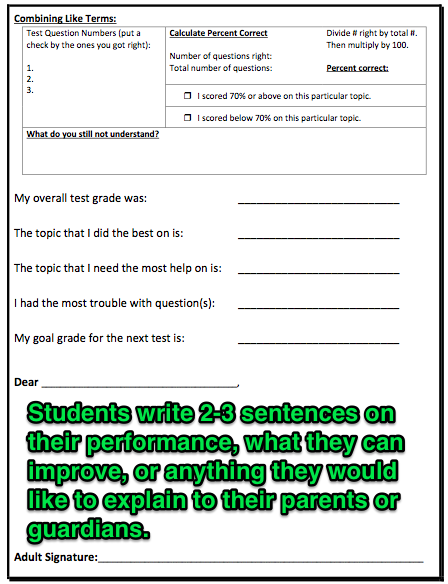
Several units ago, I created a self-assessment form to use after my students take major quizzes or tests.  I particularly like using these after a major quiz because it gives the student a very good idea of what they need to work on before the big test.  Realizing what their strengths are and that they may only have a few skills to work on to be proficient can be motivating for students.  Now that I have the form created, it takes just a few minutes to change out the topics for the next set of skills.  I have also included a section for them to write to their parents or guardians a reflection about how they did on the test.  I have had parents write notes back to me or better yet, to their own student!


The top picture is the back page of one of the self-assessments.  The students put check marks by all of the questions they got right in a particular area.  They then calculate the percent correct for that particular sub-section of the quiz or test.  Sometimes we take the time to work the percentages out by hand.  We also discuss the connection between common fractions and percentages.  In the bottom picture, we are using BYOT to speed up the process for that particular class period.

Taking the time to do the self-assessments has helped my students be more aware of their own learning.  I have had some students pull out the self-assessment from a quiz and show me that they improved on that area for the test.  The more I can get them aware of their own learning, the more they may care about their grades!

Happy Thanksgiving everyone!
Kim

Thursday, November 21, 2013

A Peek at My Week Before Thanksgiving Break - Kim

Hi everyone!  I hope you have had a good week so far and that Friday brings a great finish for you as well!  I am going to link up with Mrs. Laffin's Laughings for a Peek at My Week.


So my 6th grade math partners and I decided to finish up our unit on equations and inequalities before leaving for break.  We scheduled the test for Thursday to give us enough time on Friday for self-assessments, test corrections, celebrations, and of course, make-up testing.  We have really been into data as a school this year, which has prompted me to keep track of student data outside of just keeping a grade book.  I have found that I collect and analyze as many non-graded pieces of work during the week as I do graded pieces.  Here is how the week shaped up:

Monday - We finished discussing the last piece of new material (substituting into inequalities to find solutions) and assigned a short 6 question homework assignment.

Tuesday - We reviewed homework, completed a graphic organizer (made with a cute chevron pattern-maybe it will one day be in my TpT store), and did a ticket out the door.  Here is the best part:  The ticket out the door had 6 questions, one of each skill that the test was going to assess.  I let the students use their graphic organizer for one very important reason.  If they could be successful on the ticket out the door with their graphic organizer, but didn't do well on the test, I knew that they really just didn't study the material well enough to know what to do when.  If they couldn't get the questions correct even with the graphic organizer, I knew I would need to do more work with them on Wednesday.

Here is how I analyze data that is not in my actual grade book.  I have one master excel file that includes all 5 of my classes.  I have each student, any special information such as testing accommodations, and column after column of formative assessment data.  Once you get the excel file set up, it is just as easy to add information here as it is to a grade book.  I let excel do all of the calculations for me.  I have highlighted below how to let excel calculate the percent proficient for each particular assignment (I set it at 70).

The formula is (COUNTIF(P5:P25,">=70")/COUNT(P5:P25))*100

Wednesday - I arranged groups based on my ticket out the door data.  I do NOT record ticket out the door data into the grade book.  The average column is really for me to see more class information.  Also, in fairness to the students, a score of 4 out of 6 would cause the student to show up as not proficient.  This gives me good data to base instruction, but does not represent a fair grade in the grade book (in my opinion).  I retaught word problems with equations to the whole class (based on the data) and then made different activities for other areas of weakness.  I was able to pull 5-6 students to the back table to work with me, while other students worked on technology or practiced other self-correcting work independently.

Thursday - TEST Day!  After grading tests today, I am extremely pleased with the results!  It is so rewarding to see students who received not proficient scores earlier in the week make HUGE strides.  Sharing the data with the students can be a huge motivating factor if done correctly.  These types of formative assessments give students a way to get help in the area(s) they need it most. 

Friday - Tomorrow we will complete a self-assessment form (another potential TpT product that I have created) that will allow students to calculate their percent proficient in each sub-section of the test.  We will then work on test corrections.  As a reward, students that have made a proficient score will celebrate by bringing in a snack during class! 

This is the first year that I have ever kept numerical data on students outside of the normal grade book.  So far, it is providing extremely valuable information to help me meet students where they are.

Happy calculating,
Kim   

Wednesday, November 6, 2013

Tried It Tuesday - BYOT Student Voting & Formative Assessments

Hello everyone!  This is Kim bringing you a technology idea for your classrooms.  I tried this within the last 2 weeks and I am sold!  I am linking up with Tried it Tuesday by Fourth Grade Flipper again.  

When I taught high school math I had a set of interactive voting devices.  Students would answer any multiple-choice or true/false questions using a little blue remote.  I do not have a set of these devices at my current middle school.  Most of the voting devices are quite expensive and some become outdated quickly as technology advances.  In the last 2 weeks, I stumbled on Polleverywhere.com.  You really, really should give this a try if you have access to computers, or if your students can BYOT (bring your own technology).  

Here's how it works.  First, you go to polleverywhere.com and create your first poll question.  It's FREE!  You can watch videos to see how easy it is to incorporate into your classroom.  For educators, there is a free plan that gets 40 responses per poll (that means for each question I ask, I can have up to 40 students respond at any one time).  Since I do not have a class with that many students, the free plan is working great right now.  There are, of course, some reasons to look into a paid version, but I am not quite there yet.  

So your polls can be multiple choice, open-ended, or even a type of question called "clickable image" which would be useful if you loaded an image like a map or a biology cell and had students identify parts.  The multiple-choice can even have images as the choices!  I have one poll that I created that asks "How do you feel about today's lesson?".  Students can click on a red, yellow, or green circle to give feedback.  Here is a screenshot of what students would see on their device:


You can be very specific in your questions or you can create more generic questions that can be used over and over.  If you look at this screenshot below, I have math specific questions, but then I also have 2 generic questions that I can activate at anytime.  


This is how I usually use polleverywhere.com.  I have them look at a handout that already has a multiple-choice question or other math problem to solve.  I select the appropriate poll.  If I have an open-ended math question, I have them type their answer into the poll text box and then add their name to the end.  I hide the answers on the screen so that they cannot wait to answer after they have seen what the majority of the class is answering.  If you have a "freeze" button on your projector's remote, you can freeze the screen so they cannot see each other's responses either.  

I then "PUSH" the poll down to the student's device.  This can be a classroom computer, a tablet, a smartphone, or any device that can access the internet.  The students simply go to your polleverywhere.com class website.  Once you have "pushed" the poll, the question is now live and students will see the poll live on their device.  


They answer the poll question and their response instantly goes on the screen.  You can hide the responses or choose to leave them visible.  The graphs are instantly updated and you can literally watch the answers come in!  If it is open-ended, you can set the visual mode to show a list of responses, a "wall" of responses, a "news-ticker" style response flow, or even a word cloud.  If the question is multiple-choice, you can see a horizontal or vertical bar graph.  

You can even click on "Response History" and get a easy to read list of responses.  On this page, you can choose to export the responses as a csv file (spreadsheet).  As you see below, you may need to have discussions about expectations with this type of technology.  This screenshot is from the first time I tried polleverywhere.com.  You can see that students are free to type anything!


QUICK OVERVIEW:
  • Great for formative assessment.  Can be used as a ticket-out-the-door to set groups for the next class day.  Can replace using "sticky" notes on the board to see how students are responding.
  • Great way to engage students in today's technology.
  • VERY easy to set-up and use.  You can customize the look and feel of your polls.  You can download the poll questions into PowerPoint.  I have only scraped the surface of what this simple website can do.  
  • Create generic questions that can be used quickly without having to spend time typing in polls.  I have one generic that says "What is the answer to this question?".  I have it set as multiple-choice and open-ended depending on the question we are working on.  I literally just "push" one of those questions down to the student devices and we are ready to respond.  
  • Reserve your own polleverywhere.com website by clicking on the "How People Can Respond" dropdown on the right side of your poll question screen.  Find the blue link under "Web Devices".  It should lead you to a page to reserve your own web url.  Your students will just need to visit this one reserved page to access your polls.  They can also text in their response if you are ready to handle that!
I am a huge fan of the instant feedback that this website can provide!  In this age of data and accountability, it gives me a way to get usable data and engage students at the same time.

Here is what it looks like being used in my classroom:


Oh, I used an app called "Skitch" to annotate over the screenshots above.  Try it out too if you get a chance!

Let me know what you think in the comments section below!

Happy polling!
Kim


Tuesday, November 5, 2013

Dear Journal......

About 3 years ago I started including journaling in my classroom.  I used it just during math and it was a HUGE success.  Last year, I had my students keep a math journal and a science/social studies journal.  I found it to be a great tool to assess my students on a daily basis (depending on the lesson) and to build writing skills.  This year I have continued journaling with my students.  Each student has a math journal and a science journal.   This is how it works:
When I write my lesson plans I include a journal entry for most lessons as the "summarizing" activity.  I then cut and paste these into one document, copy them, and cut them into strips.  This makes it VERY easy for students to manage and complete.  No copying from the board (that takes too much time)!

 I use math journals to introduce the vocabulary when beginning a new math unit.  Students fill in the blanks as I discuss the vocabulary they will be learning and using within the new unit. 
Journal entries include a summary question from the daily lesson and a daily word problem.  Students are asked to complete the journal entry as a ticket out the door on many occassions.  This is a great way for me to monitor areas of weakness as well as areas of strength. 


I have also used journal entries as part of my small group "station" rotation.  On ocassion we do not get to the journal entry during class.  I have included these "skipped" journals as part of small group stations.  I typically use 4 stations to review and reinforce previous taught skills while I work with students to introduce new skills, challenge higher achieving students, or provide intervention to struggling students.  I place journal entry strips in envelopes.  Students then know how many journal entries they must complete during that station rotation.  I typically put 2 or 3 strips, which is plenty to keep students busy.

During science, I use journals in a similar way.  Journal strips are not used during science simply because the entries typically consist of vocabulary or each student's understanding of a particular section of the unit.  Students record vocabulary from the unit.  They are given a word list and asked to find the word and definition in their science book.  Then students draw a picture of the word to help them better understand the meaning.

T-charts are another strategy used at the end of a science lesson.  Currently we are studying the different regions of Georgia and the plants and animals associated with each region.  This can be very overwhelming to students.  After a class discussion, research, and exploration of the region, I have students complete a t-chart listing the plants, animals, and characteristics of the discussed region.  I use the t-chart method throughout many of my science lessons and lab experiments.

Word webs are another strategy used by students in science journals.  As we discussed animal characteristics and classifications, I had students create word webs for each animal group.  These word webs were great references to use as we explored the different animal habitats throughout Georgia's regions.

For the most part, students enjoy journaling.  It gives them the satisfaction of knowing they have learned what has been taught, allows them to be creative, and helps students share ideas with the class.  I am always looking for fun and creative activities to add to journals.  Please comment with how you have used journals in your classroom!